
MusicTech.blog
The Ultimate Guide to DAW Controllers
June 11, 2025
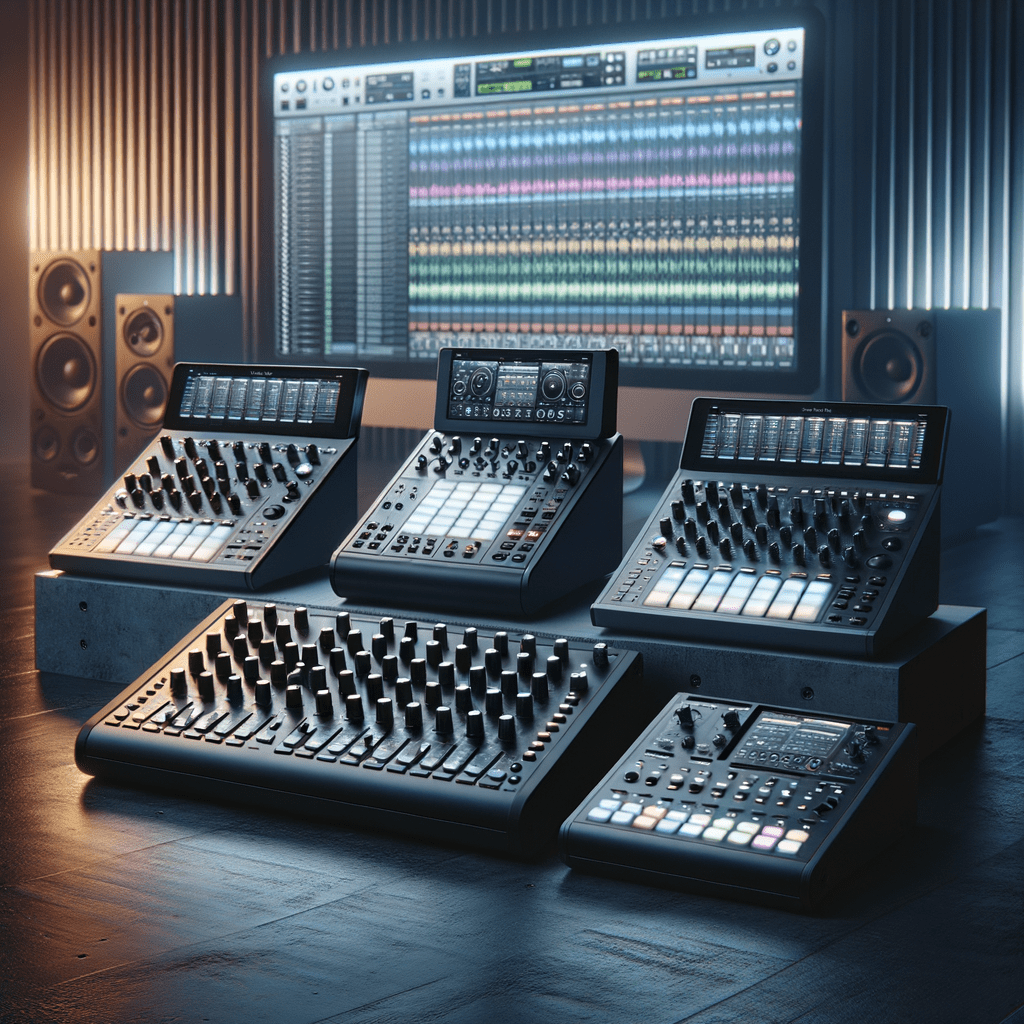
There’s a moment in most producers’ development when working entirely with a mouse starts to feel limiting. Automation feels imprecise. Mixing feels disconnected. You know what the music needs, but clicking and dragging isn’t giving you the control or the feel to get there. That’s when a DAW controller starts making sense — and for many producers, adding one is the single most significant workflow upgrade they make.
What Is a DAW Controller?
A DAW controller is a hardware device — typically connected via USB — that gives you physical, tactile control over your DAW software. Instead of clicking a fader on screen, you move a real fader. Instead of clicking play and stop, you press actual transport buttons. The controller sends data to your DAW (usually via HUI or Mackie Control Universal protocol) and the DAW responds as if you’d used the mouse and keyboard.
The key distinction: a DAW controller doesn’t produce sound. It controls your software. A MIDI controller keyboard is a performance instrument that also controls software; a DAW controller is purely a control surface for the mixing, editing, and production environment.
Why Physical Control Matters
The practical benefits of a DAW controller go beyond convenience. Several specific capabilities are difficult or impossible to achieve reliably with a mouse:
Real-Time Automation Writing
Writing fader automation with a mouse is functional but unnatural — you move one fader at a time, in small increments, with a precision that can make automated moves sound mechanical. Moving a real fader while the track plays produces automation curves that feel like a human hand made them, because they were. More importantly, you can move multiple faders simultaneously with your hands — adjusting the balance between the drums, bass, and guitars as a group in real time — which is simply not possible with a single mouse.
Motorised Recall
Many DAW controllers include motorised faders — faders with small motors that physically move to reflect the current DAW state. When you switch between tracks, or when automation plays back, the faders move on their own to show you exactly what the mix is doing. This is both a practical feature (you always know the true position of any fader without looking at the screen) and an aesthetic one — there’s a satisfying sense of the mix coming alive as the faders respond to the playback.
Hands-on Mixing Speed
An experienced mixer working on a physical control surface can make adjustments simultaneously across multiple tracks in ways that accumulate to dramatic time savings over a session. Reaching up and nudging three faders at once while tweaking a send level with a knob — this kind of parallel operation simply can’t be replicated with a single mouse cursor moving one element at a time. For producers who mix their own work regularly, this speed advantage compounds significantly.
Types of DAW Controllers
Compact Control Surfaces (Single Fader)
The entry point of DAW controllers — a single motorised fader, transport controls (play, stop, record, rewind, fast-forward, loop), and a jog/shuttle wheel for navigating the timeline. These are the most affordable and the most compact, designed for small desktop setups where a full control surface doesn’t fit but some physical control is still wanted.
The Behringer X-Touch One is the benchmark at this tier — one motorised 100mm fader, a jog wheel, transport controls, and eight assignable buttons, all at a low price that’s hard to argue with. The Presonus FaderPort (single fader version) is an alternative with slightly better build quality and strong integration with Studio One, though it works with other DAWs via HUI or Mackie Control.
Multi-Channel Control Surfaces
The most common form factor for serious home studio use — eight or more motorised faders in a row, each controlling a channel strip in your DAW’s mixer. These surfaces allow you to mix multiple tracks simultaneously, write multi-channel automation in a single pass, and get a physical sense of the balance across your mix that a single fader cannot provide.
The Behringer X-Touch (8 motorised faders, scribble strips, buttons, and encoders) is the dominant value option at this tier — it provides the core functionality of surfaces costing many times more at a price that’s accessible for home studios. The PreSonus FaderPort 8 and FaderPort 16 step up in build quality and DAW integration, with particularly strong support for Studio One but broad compatibility via Mackie Control. The Avid S1 is a professional-grade single-fader surface designed for Pro Tools that also supports other DAWs via Eucon protocol.
Professional Large-Format Surfaces
At the professional end, control surfaces like the SSL UF8, Neve 8816 summing mixer with DAW control integration, and the Avid S6 represent the level of control found in commercial mixing studios. These surfaces offer deeper integration with their supported DAWs, higher-quality hardware, and additional features like per-channel EQ and dynamics control from the surface itself. They’re investments appropriate for studios where mixing is a primary commercial activity, not the typical home studio.
Integrated Production Controllers
Some controllers blur the line between DAW controller and instrument — the Native Instruments Maschine and Akai MPC series are production environments in their own right that also integrate with DAW software. They provide pad-based beat programming, sampling, sequencing, and mixing control in a self-contained unit. These are better described as production instruments with DAW control features than pure control surfaces, but they’re relevant for producers whose workflow is centred on beat-making and pattern-based composition.
iPad and Tablet Controllers
Apps like TouchOSC, Lemur, and DAW-specific apps (Logic Remote for Logic Pro, Cubase iC Pro for Cubase, Steinberg’s own controllers) turn an iPad or Android tablet into a flexible DAW controller. These are particularly useful as supplementary controllers for specific tasks — a custom mix surface for a particular project, a transport control when you’re seated away from the keyboard, or a touchscreen fader bank during live performance. They don’t replace a physical control surface for serious mixing, but they add flexibility at a low hardware cost if you already own a tablet.
Key Features to Consider When Choosing
Motorised vs Non-Motorised Faders
Motorised faders physically move to reflect the current DAW state — they snap to the correct position when you switch to a different bank of channels or when automation plays back. Non-motorised faders don’t move on their own, which means their physical position may not match the actual fader level in the DAW. For mixing and automation writing, motorised faders are significantly more useful. For a purely transport and basic mix control setup, non-motorised faders are an acceptable cost-saving.
Scribble Strips
Scribble strips are small LCD displays above each fader channel that show the track name from your DAW — so you can see which fader controls which track without constantly looking at your monitor. On a controller without scribble strips, you need to count channels or rely on memory to know which fader is which. For any serious mixing use, scribble strips are a significant quality-of-life feature.
DAW Compatibility
Most DAW controllers communicate via Mackie Control Universal (MCU) or HUI protocols, which are supported by virtually all major DAWs — Cubase, Logic, Ableton, Pro Tools, Reaper, FL Studio, and others. Some controllers offer enhanced “native” integration with specific DAWs that provides deeper control beyond what the standard protocols allow — for example, the FaderPort’s native Studio One integration, or Avid’s Eucon protocol with Pro Tools and Media Composer. Check that your DAW supports the controller’s protocol before buying, and look for any native integration features that might be relevant to your workflow.
Jog Wheel
A jog wheel is a large rotary dial used for navigating the DAW timeline — scrubbing through audio to find edit points, nudging playback position precisely, and navigating through long sessions. It’s the control that most directly replaces what you’d previously do with keyboard shortcuts and mouse clicks for timeline navigation. For editors and mixing engineers who spend significant time making precise edits, a high-quality jog wheel is an important feature. For producers who primarily use the controller for fader mixing and automation, it’s less critical.
Do You Actually Need One?
A DAW controller is not essential equipment — plenty of professional-quality music is produced entirely with a mouse and keyboard, and many excellent producers never use a physical control surface. Where a controller pays dividends is in workflows that involve significant mixing and automation work, particularly for producers who mix their own projects regularly and find the mouse-based workflow a creative limitation.
The honest answer is: if you’re primarily a producer working in the arrangement and composition stage, a MIDI controller keyboard will likely serve you better than a DAW controller. If you spend substantial time in the mixing stage, regularly write fader automation, and find yourself frustrated by the precision limits of mouse-based mixing, a control surface is worth considering.
Start with the Behringer X-Touch One (single fader) or X-Touch (eight fader) if budget is a concern — they provide genuine functionality at a low price and will give you an honest assessment of whether physical DAW control improves your workflow enough to justify upgrading further.